Make a PDF from a set of images
Each selected image becomes one PDF page. Pages follow their image's proportions rather than a common A4/Letter sheet or uniform margins.
Assemble the document
- Choose the images together.
- Use the arrows in the file list to set page order.
- Press Create PDF from images and download
images.pdf. - Check orientation and sequence before sharing or printing.
Example: front and back scans
Choose front.jpg before back.jpg for a two-page document in that sequence. A landscape and a portrait source produce differently proportioned pages. Use Image Rotator first when a source is sideways.
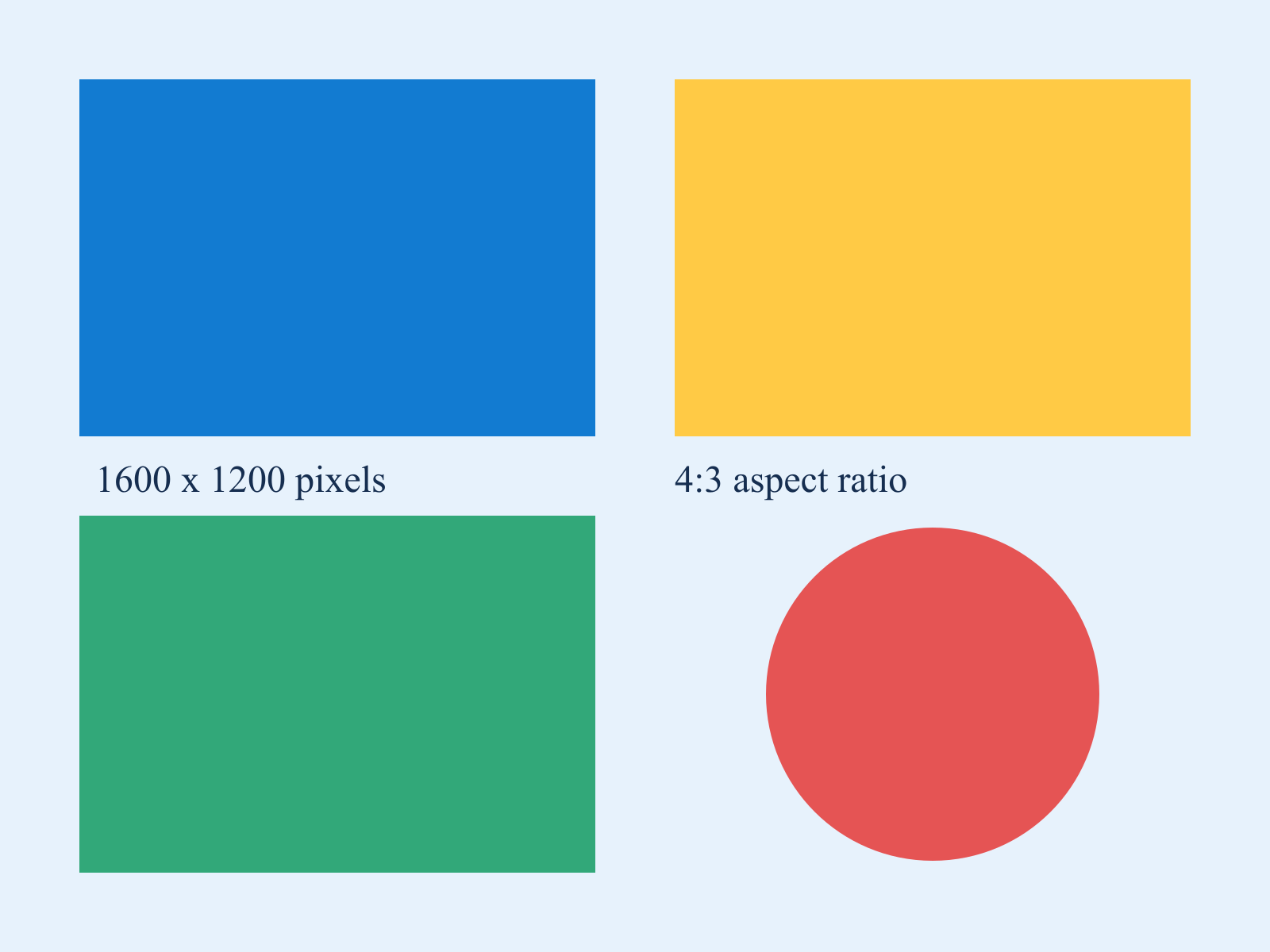
For a one-page trial, use the 1600 × 1200 sample chart. Expect one landscape page with the same 4:3 proportions and a round red circle. Its PDF page measures 1600 × 1200 points, not an A4 or Letter sheet; a print dialog may scale it to the chosen paper. To check the visible page separately, render the result with PDF to PNG.
Does it make scanned text searchable?
No. Each page embeds a raster image; no recognized text layer is added. Image to Text can transcribe printed English separately but does not add that transcription back into this PDF.
Why can the PDF grow larger?
Decoded images are embedded as PNG, so an efficiently compressed JPEG can grow. Physical page dimensions are scaled for unusually large images, but image data is still embedded. Resize oversized sources before combining them.
Use Image Resizer when the source has more pixels than the task needs. If you already have separate PDFs, Merge PDF combines their pages without first converting them to pictures.
Limits are 100 images, 25 MiB each, 100 MiB combined, 24 million pixels per image and 100 million pixels combined. Animation contributes one rendered frame. Originals stay local and unchanged; page size should be checked explicitly for printing.