Reduce image size by changing its encoding
Image Compressor re-encodes a picture at its existing dimensions. JPEG and WebP offer a quality control; PNG uses its browser encoder without a lossy-quality adjustment. The report compares original and output byte sizes so you can check whether the attempt reduced the file.
Process several images together
Select up to 20 files, or choose Load sample images to replace your selection with the two synthetic PNG examples. That sample action clears old results but does not process anything automatically. The same settings apply to every selected image. Processing runs one image at a time, and successful results appear as they finish.
Each result has its own download and preview. Output names include a sequence number, so two inputs with the same filename do not overwrite each other in the ZIP. Prepare ZIP download packages only the successful results; individual downloads remain available if packaging fails. A failed image is listed separately and does not discard the others.
Cancel stops the batch from accepting further results; an image already being decoded or encoded may finish internally before its resources are released. Completed results remain available. Changing settings or choosing another selection clears old results so you do not download images created with stale settings. Starting again processes the selected files from the beginning.
Inputs must be at most 25 MiB each and 100 MiB combined; decoded/output dimensions must stay within 24 million pixels per image. Saved outputs must fit 25 MiB each and 100 MiB combined. Reduce dimensions or quality if an output exceeds those limits. Processing one image at a time limits simultaneous canvas memory, but large batches still need enough browser memory for downloaded results.
Compress and inspect
- Choose one or more images and select JPEG, WebP or PNG.
- For JPEG or WebP, choose quality from
1to100. Start around80–85. - Press Compress images and compare the byte sizes.
- Inspect small text, edges and gradients before downloading.
Example: an upload limit
For a photograph above a site's 500 KB maximum, try WebP or JPEG at quality 80. If it still exceeds the limit, lower quality or reduce dimensions with Image Resizer. Compress Image to Target Size accepts an explicit ceiling.
Try a sample and compare two outputs
Download the synthetic 640 × 480 JPEG, select JPEG and quality 80, then press Compress images. The report should keep 640 × 480 on both sides and show the source and output byte counts. The sample contains generated shapes and demonstration camera tags, not a real photograph.
Save that output, change quality to 40 and run again from the same selected source. Compare the circle boundary and gradient in both downloaded images at the same zoom. Changing quality clears the previous download, so save any version you want to compare before editing. Exact bytes and visible differences depend on the browser encoder; a quality value is not a percentage reduction or a promise of visual quality.
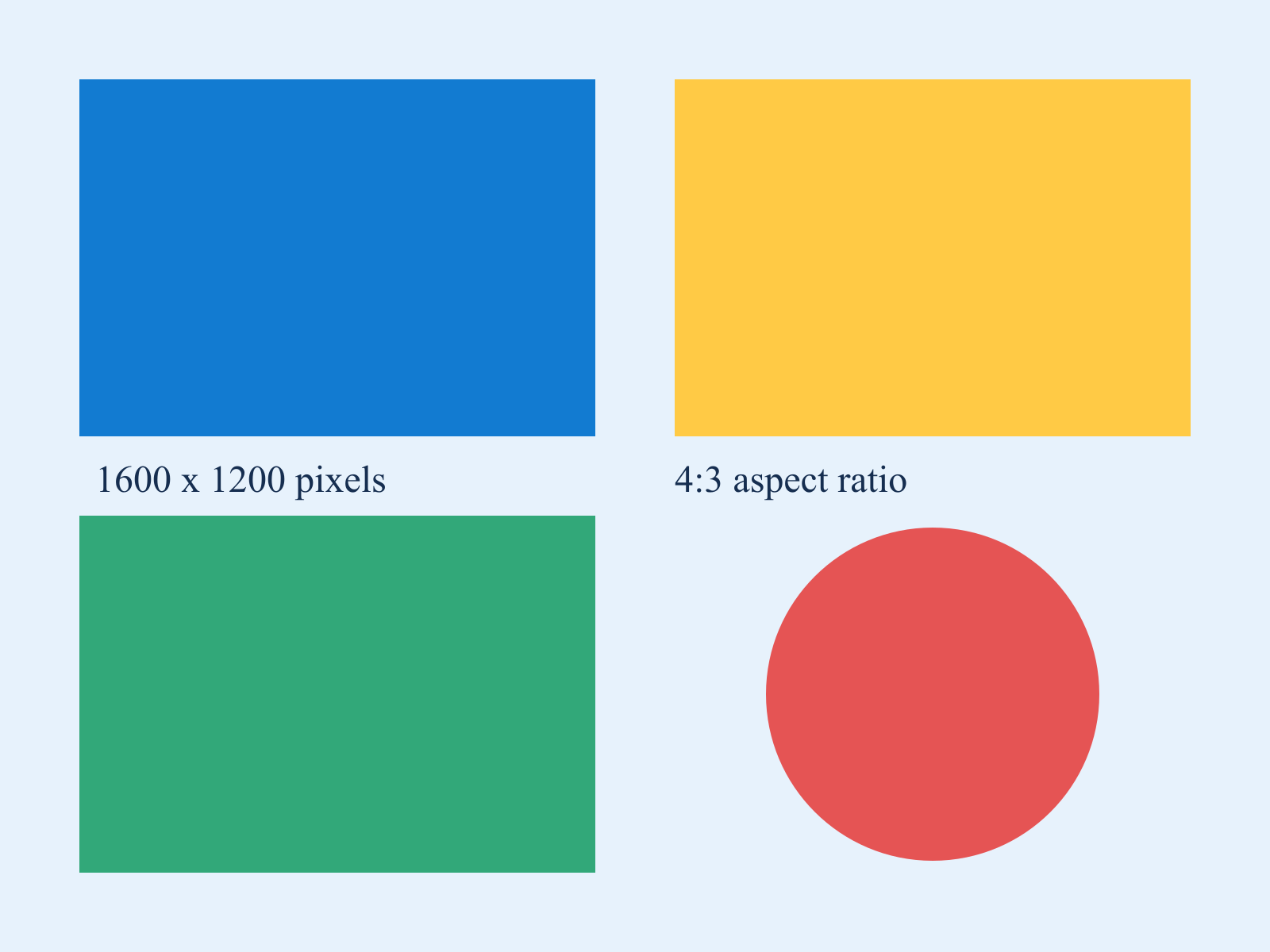
You can also use the 1600 × 1200 chart to compare small text and hard edges. A flat-color PNG may already be smaller than its JPEG conversion. For an explicit upload ceiling, use Compress Image to Target Size; for fewer pixels, use Image Resizer.
Can compression increase the size?
Yes. The source may already be efficiently encoded, and a format change can create more bytes. This page reports the generated size rather than promising a reduction on every attempt.
What about transparency and animation?
JPEG cannot represent transparency. Choose PNG or supported WebP and inspect the background when transparency matters. Animated inputs become one rendered frame. Original EXIF blocks and color-profile behavior are not preserved as a byte-for-byte copy.
The input limit is 25 MiB and 24 million decoded pixels. Browser encoders differ, so an identical quality number need not yield identical bytes on every device. The source stays local.