Add a visible mark to a photo
Add your name, a draft label or a logo before sharing a photo. Choose where the mark appears and how strongly it shows, then preview and download a PNG copy. Image Watermark accepts PNG, JPEG and WebP images and leaves your original file unchanged.
How to watermark an image
- Choose one Source image. A file must be at most 25 MiB and contain no more than 24 million pixels.
- Enter Watermark text, or choose a Logo image. A selected logo replaces the text. Select Remove logo and use text to use text again.
- Choose Position and Opacity (%). Lower opacity lets more of the source show through.
- Select Add watermark and inspect the preview. If you change an input, the old result is cleared; generate it again.
- Download
watermarked.pngand keep your original separately.
Try it on a sample image
Select Load sample images (replaces files and settings) to load the synthetic test chart with Sample text, 65% opacity and the bottom-right position. This replaces the current source, clears any logo and old result, and resets the controls. Select Add watermark to process it. The sample is downloaded from this site only when you click the button.
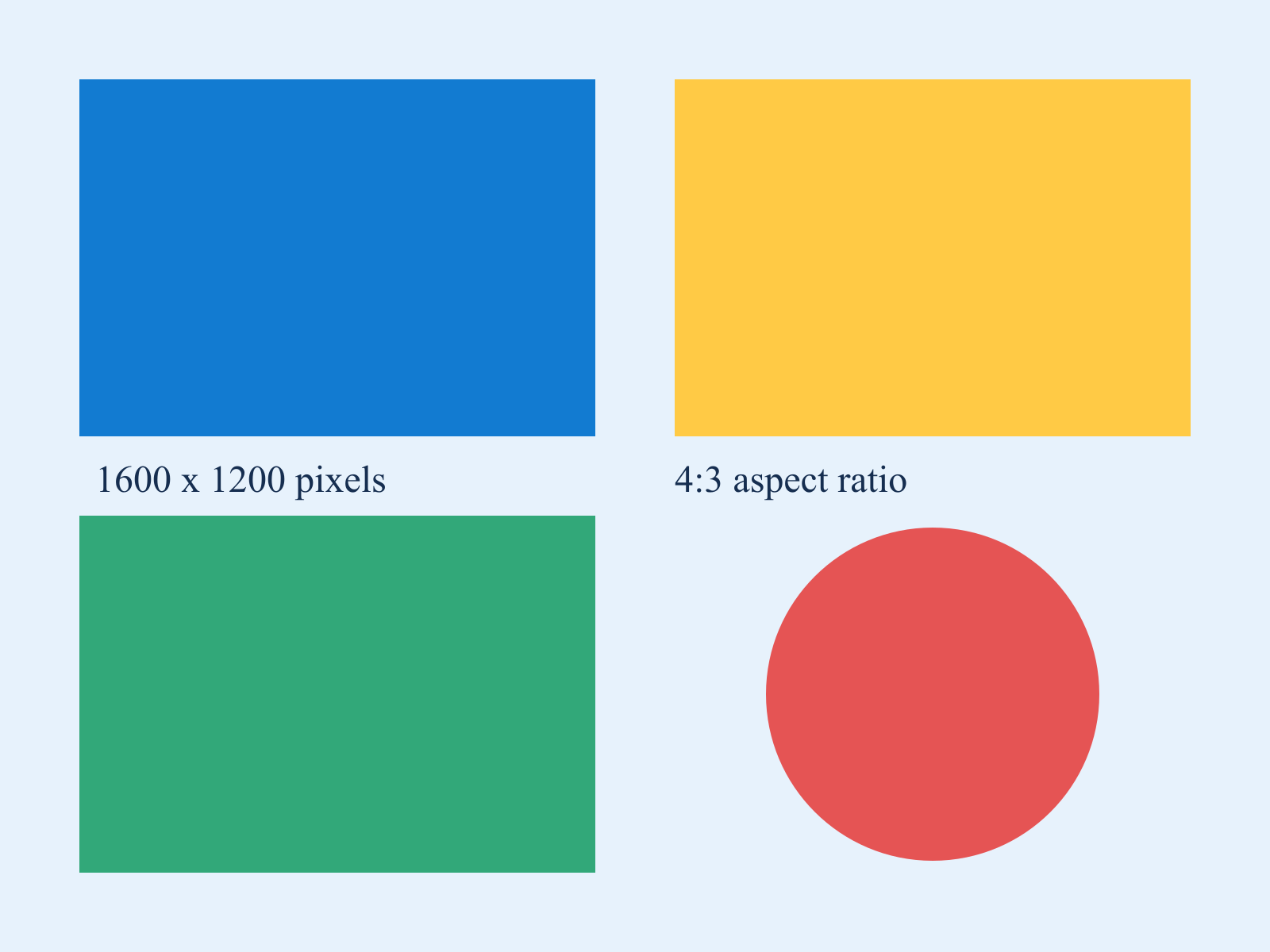
Download the 1600 × 1200 test chart, select it, enter Sample, choose Bottom right, and set opacity to 65. The exported image remains 1600 × 1200 pixels with the mark near the lower-right corner. The tool never changes the canvas dimensions to make room for the mark.
Text is white with a black outline and uses the browser's sans-serif font. Its initial size follows the image width and is reduced when needed to fit. The text may look different between operating systems. Logos preserve their aspect ratio and fit within a smaller area of the image; transparent PNG logos avoid a solid rectangular background.
Choose text or a logo
Use text for a quick name or draft label. Use a logo when its lettering, color or shape must stay consistent across devices. The tool places one mark per image; it does not repeat the mark as a pattern. A visible watermark can identify a shared copy, but does not prevent editing or prove ownership.
The result is a fresh PNG without the source EXIF metadata or animation. SVG is not accepted. Keep the source file if you need its camera information or an unmarked version.
Troubleshooting and next steps
If a mark disappears against the photo, increase opacity or move it to a less busy corner. If the output is large, PNG may be retaining more detail than a compressed JPEG. Use Image Compressor afterward, then inspect whether the watermark remains legible. Use Image Resizer first when a source exceeds the pixel limit.
The image and optional logo are read locally in the browser. This tool does not upload them. Decoding and export still depend on browser support and available memory; a smaller copy may succeed when a large photo does not.