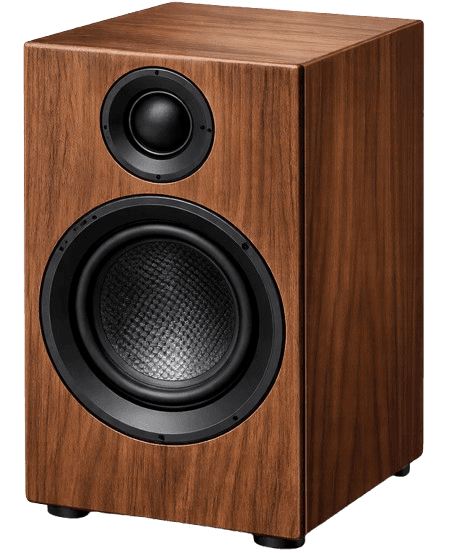
Free Online Speaker Test - Test Your Audio Quality and Stereo Balance
Test your speakers or headphones instantly with our free online speaker testing tool. Verify stereo audio output quality, left-right channel separation, and volume balance using real-world sound samples. No installation or software download required. Perfect for testing computer speakers, headphones, earbuds, stereo systems, home theater setups, and car audio.
Why Test Your Speakers?
Regular speaker testing helps you:
- Verify Stereo Balance - Ensure equal volume and quality from left and right channels
- Test Channel Separation - Confirm proper stereo imaging and left-right audio distribution
- Detect Hardware Issues - Identify damaged or malfunctioning speakers early before they fail completely
- Optimize Audio Setup - Fine-tune your stereo sound system for the best performance
- Check New Equipment - Test speakers before purchase or immediately after unboxing
- Diagnose Audio Problems - Troubleshoot crackling, distortion, weak output, or channel imbalance
- Validate Repairs - Confirm speaker repairs were successful and both channels work properly
How to Use the Speaker Test Tool
Step-by-Step Instructions
-
Select Your Test Sound
- Choose from multiple test audio samples in the dropdown menu
- Each sound is optimized to test different aspects of stereo speaker performance
- Sounds include various audio patterns designed to test channel separation and balance
-
Play the Test Sound
- Click the Play button to start the audio test
- The speaker icons will animate in real-time showing volume levels for each channel
- Watch both left and right speakers to visualize stereo balance and activity
-
Observe Stereo Channel Activity
- Left Speaker - Monitor the left speaker icon for left channel output and volume
- Right Speaker - Monitor the right speaker icon for right channel output and volume
- Both speakers should display synchronized animation when stereo audio is playing
- Visual feedback helps identify which channel is active and at what intensity
-
Evaluate Your Results
- Listen for clarity, stereo separation, and balance between left and right
- Both speakers should produce clear, undistorted sound at equal volume
- The animated speaker icons should pulse symmetrically during stereo playback
What to Test and Listen For
Stereo Channel Balance Testing
- Left and Right Synchronization - Both channels should play simultaneously with equal volume
- Visual Feedback - Watch the animated speaker icons pulse in sync with the audio
- Equal Volume Output - Both left and right speakers should produce the same loudness level
- Stereo Imaging - Sound should appear balanced and centered between both speakers
- No Channel Dropout - Both speakers should remain active throughout playback
Audio Quality Assessment
Clarity and Definition
- What to Listen For: Clear, crisp sound reproduction without muffling or distortion
- Good Performance: Audio plays smoothly with all details audible and distinct
- Common Issues: Damaged speakers may sound fuzzy, muffled, or distorted
- Visual Indicator: Speaker icons should pulse smoothly matching the audio rhythm
Stereo Separation
- What to Listen For: Ability to distinguish left and right channel differences
- Good Performance: Clear spatial positioning with distinct left-right audio placement
- Common Issues: Poor stereo separation makes sound appear to come from one location
- Use Case: Essential for music production, gaming, and immersive audio experiences
Volume Balance
- What to Listen For: Equal loudness from both left and right speakers
- Good Performance: No noticeable difference in volume between channels
- Common Issues: One speaker significantly quieter indicates hardware or connection problems
- Visual Indicator: Both speaker icon animations should pulse with similar intensity
Real-World Sound Testing
Test sounds include realistic audio samples that reveal:
- Dynamic Range - How well speakers handle varying volume levels
- Transient Response - How accurately speakers reproduce sudden sounds
- Stereo Field - How effectively speakers create spatial audio positioning
- Overall Fidelity - General audio reproduction quality across the frequency spectrum
Common Speaker Problems and Solutions
No Sound Output
Symptoms: Complete silence when playing test tone Possible Causes:
- System volume muted or set to 0%
- Wrong audio output device selected
- Speakers not powered on or connected
- Audio cable unplugged or damaged
- Audio driver issues Solutions:
- Check system volume settings
- Verify correct output device in sound settings
- Ensure power connection and cables are secure
- Try different audio output or different speakers
- Update audio drivers
Sound Only in One Channel
Symptoms: Audio plays from left or right side only Possible Causes:
- Damaged speaker or earphone driver
- Loose or broken audio cable
- Incorrect balance settings
- Partially inserted audio jack Solutions:
- Test with different headphones/speakers to isolate the problem
- Check audio balance in system settings (should be centered)
- Ensure 3.5mm jack is fully inserted
- Try the cable in a different device
- Inspect cables for visible damage
Distorted or Crackling Sound
Symptoms: Static, crackling, or fuzzy audio during test Possible Causes:
- Volume too high causing speaker distortion
- Damaged speaker cone or voice coil
- Loose connection or corroded contacts
- Amplifier clipping
- Debris in speaker grille Solutions:
- Reduce volume to 50% and test again
- Check for physical damage to speaker cones
- Clean speaker contacts and connections
- Test with different audio source
- Consider speaker replacement if damage is confirmed
Weak or Muffled High/Low Frequencies
Symptoms: Certain frequencies sound quiet or missing Possible Causes:
- Speaker design limitations (small speakers can't reproduce deep bass)
- Damaged tweeter or woofer
- Equalizer settings
- Age-related deterioration Solutions:
- Understand your speaker's specifications and limitations
- Reset equalizer to flat/neutral settings
- Test frequencies within your speaker's rated range
- Consider upgrading speakers for better frequency response
Unbalanced Volume Between Left and Right
Symptoms: One speaker noticeably louder than the other, uneven speaker icon animation Possible Causes:
- Incorrect stereo balance setting in software
- Speaker positioning or distance from listener
- Different speaker ages or models in a mismatched stereo pair
- Hardware damage to one speaker channel Solutions:
- Check and center the L/R stereo balance in system sound settings
- Position speakers equidistant from listening position for proper stereo imaging
- Verify both speakers are the same model for matched performance
- Replace the weaker speaker if damaged or test with different audio source
Best Practices for Speaker Testing
For Desktop/Computer Speakers
- Position speakers at ear level for optimal stereo imaging
- Place speakers equal distance from your seating position to maintain stereo balance
- Keep speakers away from walls and corners to avoid sound reflections
- Remove obstacles between speakers and ears for clear audio path
- Test in a quiet environment to accurately assess speaker performance
- Watch the visual speaker indicators to confirm both channels are active
For Headphones and Earbuds
- Ensure proper fit in/over ears for accurate sound reproduction
- Clean ear tips and drivers regularly for best audio quality
- Test both wired and wireless modes (if applicable)
- Check for left/right markings (L/R) to verify correct stereo placement
- Test at moderate volume (60-70% maximum) to protect hearing
- Observe the animated speaker icons to verify both channels are working
For Stereo and Home Theater Systems
- Test stereo pair speakers together to verify balanced output
- Position yourself in the optimal listening position between both speakers
- Verify stereo sound configuration matches your setup (2.0, 2.1, etc.)
- Observe both speaker icon animations to confirm synchronized playback
- Ensure amplifier or receiver is set to stereo mode for accurate testing
- Check that both speakers produce equal sound levels
For Bluetooth/Wireless Speakers
- Ensure stable Bluetooth connection before testing
- Test within optimal range (usually 10-30 feet) for consistent audio
- Disable audio enhancements or DSP that may affect stereo balance
- Compare wired vs wireless if both options available on your speakers
- Check for audio lag or sync issues by watching the visual indicators
- Verify stereo pairing if using two separate Bluetooth speakers
Technical Details
Audio Technology Used
- Audio Format: High-quality MP3 audio samples for realistic testing
- Channel Configuration: Stereo (2-channel) for left and right speaker testing
- Real-Time Analysis: Web Audio API with channel splitter for independent left/right monitoring
- Visual Feedback: Live frequency analysis with animated speaker icons
- Sample Rate: System default (typically 44.1kHz or 48kHz)
- Bit Depth: System default (typically 16-bit or 24-bit)
- No Plugins Required: Browser-based testing using modern Web Audio API
How Stereo Testing Works
The tool uses advanced Web Audio API technology to:
- Split Stereo Channels: Separates left and right audio channels for independent analysis
- Real-Time Visualization: Analyzes audio frequency data 60 times per second
- Volume Detection: Measures average frequency response for each channel independently
- Synchronized Display: Shows live speaker activity through animated visual indicators
- Accurate Balance: Ensures equal distribution of audio between left and right channels
Why Real-World Audio Samples?
Real-world sounds provide comprehensive speaker testing because they:
- Contain Multiple Frequencies: Test full frequency spectrum simultaneously
- Reveal Dynamic Response: Show how speakers handle varying volume levels
- Test Stereo Imaging: Demonstrate spatial audio positioning and channel separation
- Simulate Actual Use: Provide realistic assessment of everyday listening performance
- Identify Practical Issues: Expose problems that may not appear with synthetic test tones
Understanding Stereo Audio
- Left Channel: Carries audio intended for the left speaker in stereo systems
- Right Channel: Carries audio intended for the right speaker in stereo systems
- Stereo Imaging: The perception of sound positioned in space between speakers
- Channel Separation: The degree to which left and right channels remain independent
- Balance: Equal volume distribution between left and right channels for centered sound
Frequently Asked Questions
Can this test damage my speakers?
No, when used at reasonable volume levels. Our test uses standard audio samples at safe volume levels. However, playing any audio at maximum volume for extended periods can potentially damage speakers and hearing. Always test at moderate volume (50-70% system volume).
Why do the speaker icons animate?
The animated speaker icons provide real-time visual feedback showing:
- Which channels are active: See if left, right, or both speakers are producing sound
- Volume levels: Icon animation intensity reflects the audio volume for each channel
- Stereo balance: Compare left and right animations to verify balanced output
- System response: Confirm your audio system is processing the signal correctly
How does stereo testing work?
Our tool plays audio samples and uses Web Audio API to:
- Split the stereo signal into separate left and right channels
- Analyze frequency data from each channel independently in real-time
- Calculate volume levels for left and right speakers separately
- Display synchronized visual feedback through animated speaker icons
- Help you identify channel imbalance or speaker malfunctions
Is this test as good as professional audio testing equipment?
While not a replacement for professional measurement microphones and analyzers, our tool provides excellent subjective assessment of stereo speaker performance for everyday users. It's perfect for:
- Quick stereo functionality checks and channel verification
- Identifying obvious balance problems and speaker failures
- Comparing different speakers and stereo systems
- Basic troubleshooting of audio issues
- Verifying stereo separation and imaging
How often should I test my speakers?
- New Equipment: Test immediately upon setup to verify proper stereo operation
- Regular Use: Test every 6-12 months to ensure continued balanced performance
- After Moving: Test after relocating or repositioning speakers to check stereo imaging
- When Issues Arise: Test whenever you notice audio problems or balance issues
- Before Important Use: Test before critical listening sessions, presentations, or recordings
Can I test my phone/tablet speakers?
Yes! This tool works on any device with speakers and a modern web browser, including:
- Desktop and laptop computers with stereo speakers
- Smartphones (iOS and Android) - most have stereo speakers
- Tablets and iPads with stereo speaker configurations
- Bluetooth speakers paired to your device (including stereo pairs)
- Any device with a modern web browser supporting Web Audio API
What should I see during a good stereo test?
During proper stereo playback, you should observe:
- Both speaker icons animating simultaneously in sync with the audio
- Similar animation intensity on left and right speakers indicating balance
- Smooth, consistent pulsing matching the rhythm and volume of the test sound
- Clear audio from both speakers with no distortion or dropouts
- Centered sound image appearing to come from between both speakers
Additional Resources
When to Seek Professional Help
Contact a professional audio technician if you experience:
- Physical damage to speaker cones or surrounds
- Burning smell from speakers or amplifier
- Complete system failure despite troubleshooting
- Need for precise calibration for professional use
- Complex home theater setup issues
Speaker Maintenance Tips
- Clean speakers regularly with a soft, dry cloth
- Keep speakers away from moisture and extreme temperatures
- Don't push speakers beyond their rated power handling
- Use proper gauge wire for speaker connections
- Store speakers properly when not in use
Related Tests You Might Need
- Microphone Test: Verify your microphone is capturing audio correctly
- Webcam Test: Check if your camera is working properly
- Audio Latency Test: Measure delay between audio and video
- Soundcard Test: Verify your audio interface is functioning
About This Tool
This free online stereo speaker test tool requires no installation, registration, or downloads. It works directly in your web browser using modern Web Audio API technology for real-time channel analysis and visualization. Your privacy is protected - no audio data is recorded or transmitted. The tool works completely offline after the page loads.
Perfect for audio engineers, musicians, gamers, content creators, home theater enthusiasts, and anyone who wants to ensure their stereo speakers are performing optimally. Test your stereo audio setup in seconds with real-world sound samples and live visual feedback showing left and right channel activity.
Whether you're setting up a new stereo system, troubleshooting audio balance issues, verifying headphone channels, or just checking that both speakers work properly, this browser-based tool provides instant, accurate stereo testing without any software installation.